Canvas is outdated, you deserve better.
Download all your courses in minutes|
Free desktop app for students. Download everything from all your courses, sync with Canvas, and get files that drop straight into NotebookLM.


Hi, I'm Birk.
I'm studying BSc in Business
Administration and Information Systems at Copenhagen Business School.
I got tired of
manually downloading my course files from Canvas and converting them to AI-ready formats, so i decided to
make this app!
It's 100% free and open-source - for all students to use! Happy downloading!
You're wasting hours managing files.
- Downloading files one-by-one wastes hours and steals your first 10 minutes of focus every lecture.
- After manually downloading, you waste more hours manually converting course files into AI-ready formats.
- By exam season you end up with massive unorganized course folders, unsure if you're missing critical materials.
Canvas Downloader puts an end to that.
Download years of courses in minutes.
Downloading files one-by-one is a thing of the past.
Select your courses, choose a download
configuration, and let the app pull all your course files from Canvas, into course folders
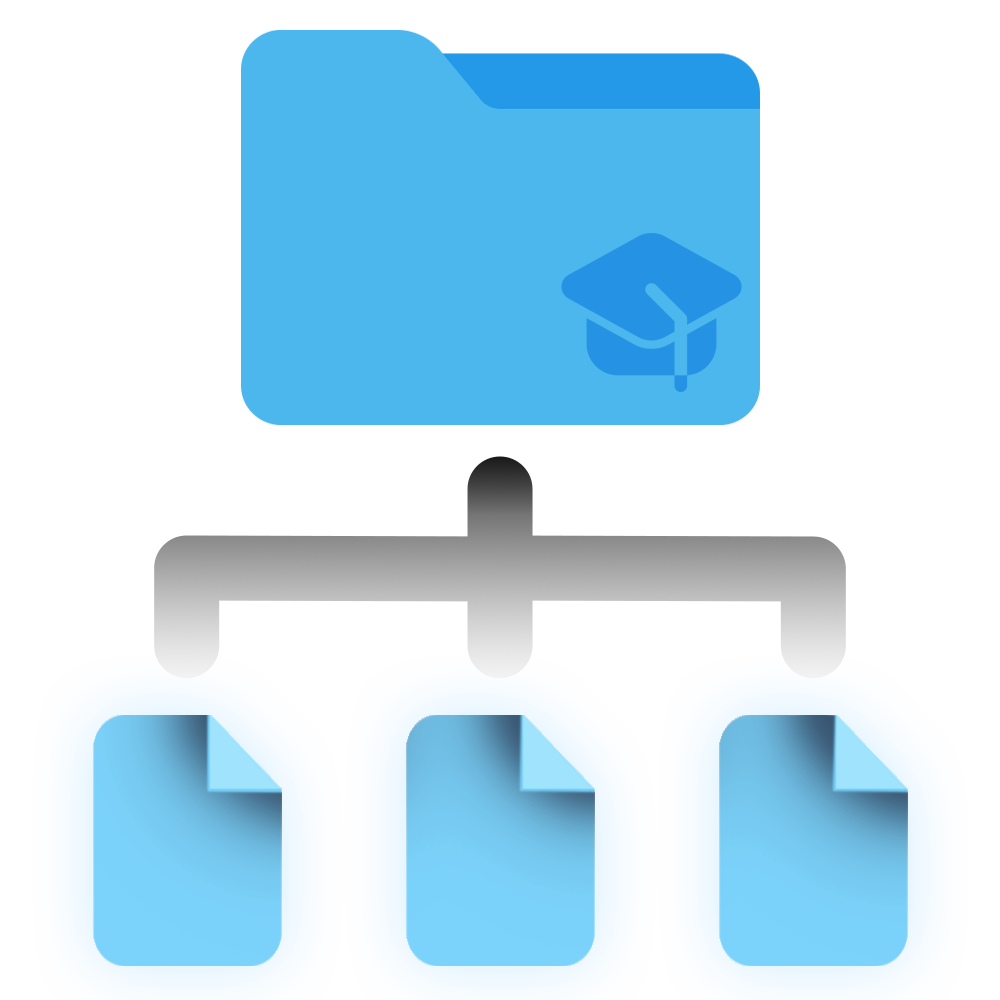
organized exactly like your Canvas courses.
But that's not all: Canvas Downloader gives you
everything. The app also downloads Canvas Content - all your assignments, announcements,
quizzes, etc. and any file attachments, so your PC has a 1:1 copy of each course.
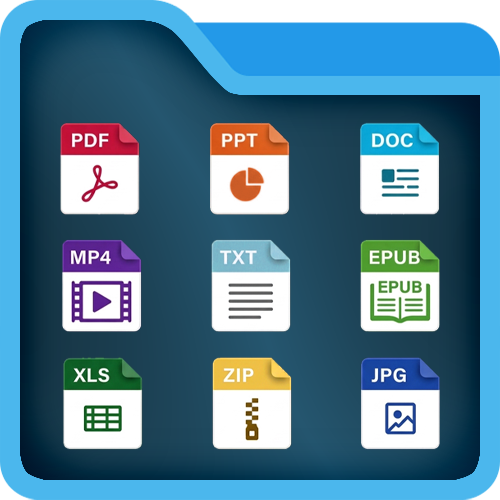
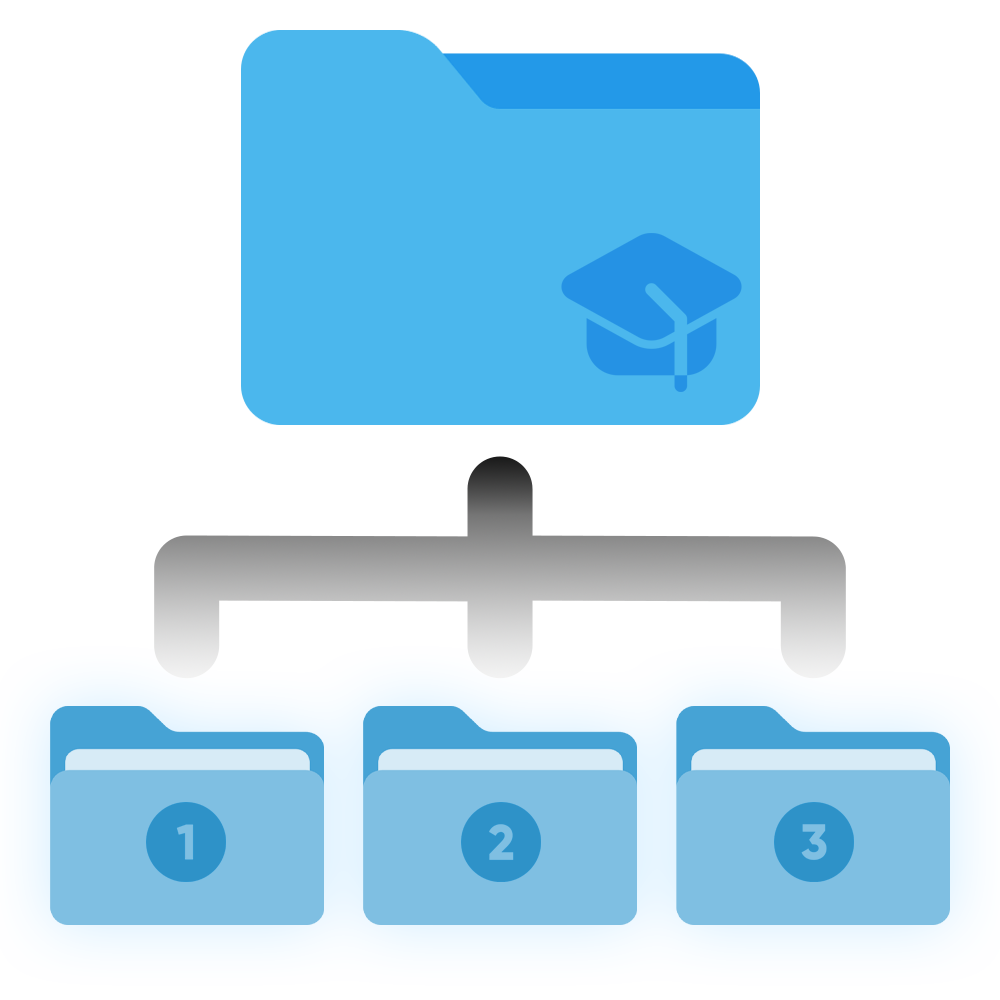
Select exactly which Canvas pages, announcements, assignments, and discussions you want exported as readable files.

Get new files from Canvas with one click
Imagine this - It’s Monday morning. Instead of digging through Canvas to find the files for your first
class, just open Canvas Downloader, and hit Quick Sync. The app instantly finds and downloads
only the newest files your professors added to Canvas.
Easy setup: Save your courses as a
group, and add them to the Sync List. Then one press of Quick Sync All downloads everything new,
straight to your PC. Want it fully automatic? Use Today's Files mode...
Auto-download new course files, every morning
Meet the Today page - your daily home in the app. Pick your courses once and switch on daily
sync. From then on, the first time you open the app each day, it automatically pulls every new file
from Canvas, all by itself.
The Today's files page shows exactly what arrived today,
grouped per course - open any file or its folder with one click, or open all new files at once. You
don't need to open Canvas or worry about what's new anymore.
Supercharge your studies
Canvas Downloader is built for the modern studying workflow, where AI-assisted learning is at the
core.
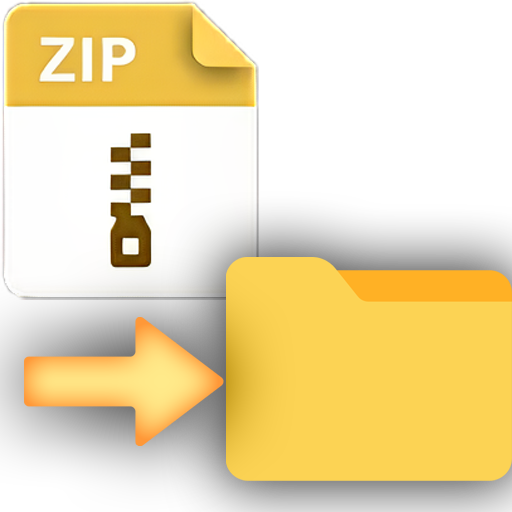
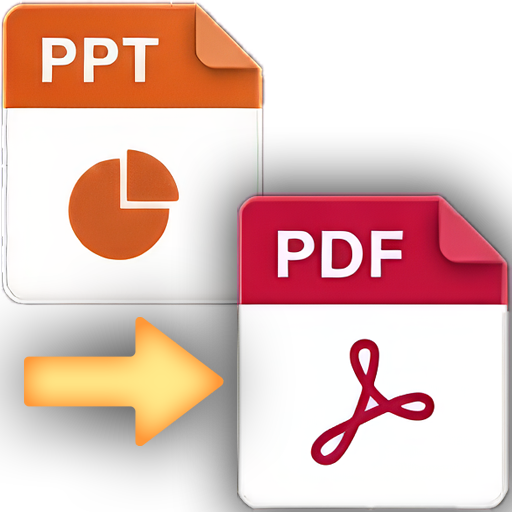
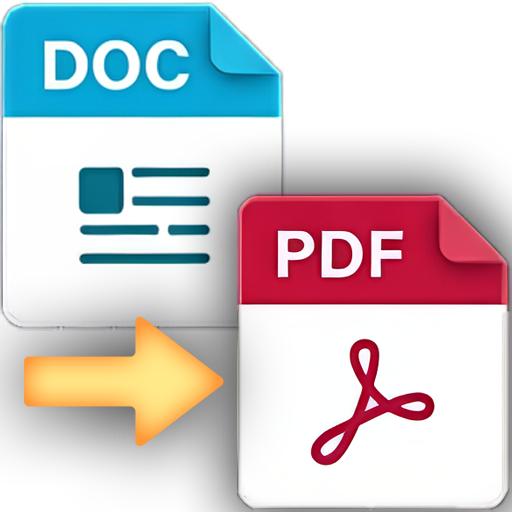
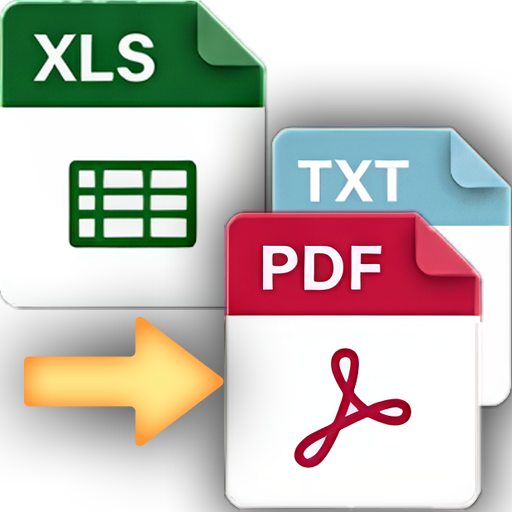
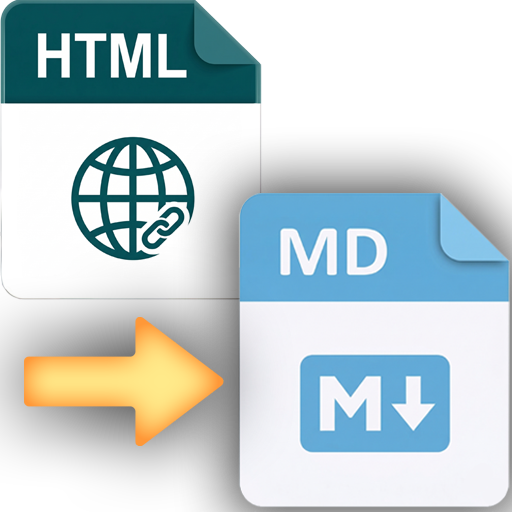
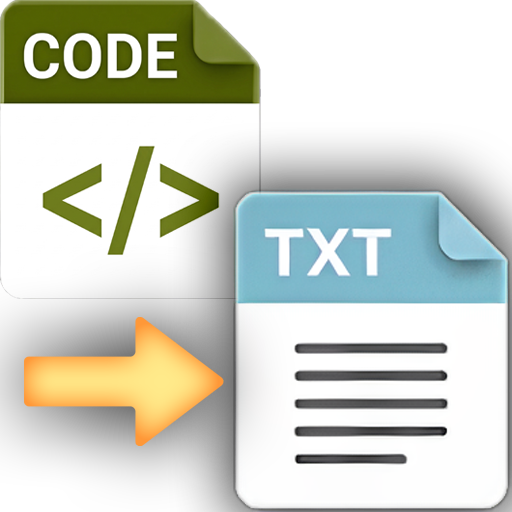
When enabled, the app automatically converts all your course materials to
AI-Ready file formats, whenever you Sync or Download. No more timely manual conversions on sketchy
websites.
Purpose-built for NotebookLM (100% compatibility): Enable AI Optimizations →
Download → Drag & Drop into NotebookLM and start studying.
Full overview of your course folders.
No more stressing over chaotic folders or missing files because you skipped a day of school. Sync
Review mode compares your local files directly against your Canvas courses and runs advanced
algorithms to show you exactly what's different, so you can download exactly what you need.
The
app categorizes the results so you can select and download exactly what you need: New files, deleted
files, updates or changes, giving you full control and confidence that your materials are always
100% up-to-date.
 New Files
→ Downloaded fresh into the correct subfolder.
 Updates (Clean)
→ Replaced in place - same name, same location.
Edited Locally→ New version saved as _NewVersion. Your edits are never touched.
 Deleted Locally
→ Your deletion is respected. Won't redownload unless you check the box.
 Deleted on Canvas
→ Your local copy stays exactly where it is. The app never deletes files.
Your Panopto lecture recordings, downloaded & transcribed.
Some courses post their lectures as Panopto recordings - slow to rewatch, and impossible to hand
to an AI. Canvas Downloader saves them straight to your course folder as video or audio to
watch anytime, and turns them into transcripts and subtitles that are instantly
AI-ready.
Video and audio need zero setup. Transcripts run 100% on your own computer -
private, offline, and free.
Ready to take control of your courses?
Join 1200+ students saving hours every semester.
On a Mac? Read this first
Canvas Downloader works on macOS, but there are a few things worth knowing before you dive in.
Setup macOS blocks the app on first launch
Because Canvas Downloader is a free solo project, it isn't signed with Apple's paid certificate. macOS will
block it with an "unidentified developer" or "damaged" message the first time you open it. This is normal
for free apps.
The install guide walks
you through it in under a minute: approve it in System Settings → Privacy & Security → Open
Anyway, or run one Terminal command if it says "damaged". After that, it opens normally forever.
Managed Macs University-managed Macs may block installation
Some universities lock down their Macs so that students cannot install apps, unlock Privacy & Security,
or run Terminal commands without admin rights. If your Mac is managed by IT and the install guide doesn't
work, you have two options:
• Install Canvas Downloader on your personal Mac instead.
• Contact
your IT helpdesk and ask them to allow the app, or to temporarily grant admin rights for the installation
step.
Updates You may need to re-enter your Canvas Access Token after an update
macOS stores your Canvas Access Token in your Keychain - a secure password vault in your operating system.
Because the app isn't signed with a paid Developer ID certificate, macOS may treat a new version as a
different app and ask for your Keychain password again - or prompt you to re-enter your token.
This
is a one-time step per update, not per launch. Your token hasn't changed - you can copy it from your
Canvas account settings and paste it in again.
Conversions Office → PDF needs the Microsoft desktop app
The PowerPoint → PDF, Word → PDF, and Excel → PDF conversions use AppleScript to drive the
Microsoft Office desktop app to convert your files. If you use Office via the web browser or don't have it
installed, those conversions are silently skipped and your original files are kept
unchanged.
Everything else - downloading, syncing, video-to-audio, archive unpacking, Canvas pages
to text, code files, and web links - works without any extra software.
Hardware Apple Silicon only (M1, M2, M3, M4, M5)
The macOS version of Canvas Downloader is built for Apple Silicon only. It will not run on older Intel
Macs (2020 and earlier).
Not sure which chip you have? Click the Apple menu → About
This Mac. If it says "Apple M…" next to Chip, you're good. If it says "Intel Core", the
Mac version won't work - use a Mac with Apple Silicon or a Windows PC instead.
macOS version Needs macOS 14 Sonoma or newer
The Mac build is compiled against libraries that require macOS 14. On macOS 13 Ventura or older it will
not launch, so please don't download it there.
Check with the Apple menu →
About This Mac. Sonoma (14), Sequoia (15) and Tahoe (26) are supported.
Fair questions, straight answers.
Downloading an "unsigned" app can feel sketchy, and it's a completely reasonable thing to be cautious about. Here is the transparent truth:
Why is Windows / Mac warning me?
Code-signing certificates - the thing that makes these warnings go away - cost $99 to $300 a year, paid to Apple or Microsoft. Since this is a free project built by a student, for students, and makes absolutely no money, paying for these certificates is unfortunately out of the question right now. To keep the app completely free, it remains unsigned. I hope to sign it in the future, but for now, the warning simply means the app is from an independent developer, not that it's dangerous. I've done the absolute best job I can to build it securely and transparently.
The certificate program isn't a safety check - it's a publisher registry. Any developer, including a malicious one, can buy one and appear clean and safe to your operating system. Skipping it doesn't say anything about the code.
If the warning bothers you and you'd like it gone for everyone, chipping in towards the certificates is the thing that would actually do it.
What does it actually connect to?
Your courses and files come from your university's Canvas server - the same URL you log into in your browser. There's no backend, no analytics server, no developer receiving anything from your machine. Your Canvas Access Token is stored in your OS's password vault (Windows Credential Manager or macOS Keychain), never in a plain-text file, and is only ever sent to your university's Canvas.
Three other connections exist, which are worth noting: your university's Panopto server, only if you download lecture recordings; Hugging Face and PyPI, only if you set up on-device transcription or GPU acceleration - a one-time file download; and a version check against GitHub when the app starts, so it can tell you an update is out. That last one sends nothing but the request itself: no token, no course data, no identifier. The full list is in the privacy policy.
The app's local interface runs on 127.0.0.1 - your own computer only. It cannot be reached from the internet or your local network. None of this requires trusting my word: the source code is publicly readable on GitHub.
What about the Instructure / Canvas breach?
This app has no connection to Instructure beyond using their public student API - the same one used by the Canvas mobile apps and other third-party integrations. It's not built by them, not affiliated with them, and the breach happened on their servers, not on your computer. Using this app doesn't change your exposure to that incident in either direction.
The practical step is the same regardless of this app: update your Canvas password, and in Canvas → Account → Settings → Approved Integrations, remove any Canvas Access Tokens you don't recognize.
You don't have to take our word for it
The full source code is public on GitHub and has been since the beginning. If you're
unsure, read it before downloading - that's exactly the right approach. The things worth checking are in
three files: start.py
(server binds to 127.0.0.1), canvas_logic.py
(all requests go to your Canvas URL), and ui/auth.py
(token saved to your OS keyring, never written to a plain-text file).
If you're not a developer, the fact that the source is fully public and has been since day one is itself the most meaningful signal.
Read the source on GitHubWhat can the app do with my Canvas token?
You create the token yourself in Canvas and can revoke it there at any moment, which cuts the app off instantly. How to get one →
Enjoying Canvas Downloader?
It's built by one student, between lectures, and will always be 100% free. If it saves you time or helps your studies, you can buy me a coffee - it keeps the project alive and gets us closer to the paid app certificates that would remove the install warnings for everyone.
Support me & the projectNot in a position to donate? Starring the project on GitHub helps too.
FAQ
Is Course Downloader for Canvas the same as Canvas Downloader?
Yes. Same app, same guy who built it, two names. The Microsoft Store lists it as Course Downloader for Canvas. Here, on GitHub and inside the app itself it is Canvas Downloader.
What to check is the publisher name: BrkBuilds. If the Microsoft Store page says BrkBuilds, you have the right one.
A lot of projects are called some version of "Canvas downloader", and most of them are browser extensions or scripts you run from a terminal. This is the only user-friendly and free desktop app out there: you pick your courses, it downloads everything, and it keeps the folders up to date for the rest of the semester. The blue icon with the white download-cloud is the same on Windows, macOS and the Store.
Is this allowed by my university?
Canvas Downloader signs in as you, with a token you create, and only reaches files your account can already open. It uses the official Canvas API - the same one the Canvas mobile apps use - and breaks no copy protection of any kind.
What it can't do is know your institution's rules, so that part is on you: keep downloads for your own study and never redistribute course material. Lecture recordings need more care than files - see the disclaimer, which sets out exactly what the app does and where the limits are.
Is it really free? What's the catch?
Free with no catch. No subscription, no premium tier, no ads. It's an open-source project. Read every line of code on GitHub.
Will it work with my university's Canvas?
Yes. Canvas Downloader uses the standard Canvas REST API, which every Canvas institution runs - if you can log into Canvas at your university, it works.
To save you finding your Canvas address, the app ships a searchable list of 4,757 verified institutions across every country that uses Canvas, so most people just type their school's name and pick it. Not in the list? Paste your Canvas address instead - nothing about the app depends on being listed.
What happens when my professor updates a file?
In Sync Mode, the app detects the update. If you haven't edited the file, it replaces it. If you've annotated it, the new version is saved as filename_NewVersion next to yours - your work is never lost.
Can it fetch new files automatically every day?
Yes. On the Today page, pick the courses you care about and switch on daily sync. The first time you open the app each day it quietly syncs those courses by itself and shows you the files that arrived today, grouped per course. You can also hit Quick Sync now on the same page whenever you want. See the Today guide.
Can it download lecture recordings (Panopto)?
Yes. Canvas Downloader automatically finds Panopto lecture recordings linked in your courses and saves them in the course folder as video (MP4), audio (MP3), a written transcript (.txt), subtitles (.srt), or just a shortcut back to the lecture. Transcription runs entirely on your own computer - nothing is uploaded - and works in both download and Sync modes. See the Panopto guide to set it up.
Please read the disclaimer before you turn this on. Recordings belong to your lecturer and your institution, Panopto's download button is a setting the app does not read, and saving one may be against your institution's rules even though you're allowed to watch it. Keep them for your own study and never share or re-upload them.
The security warning scared me - is it safe?
Yes. The warning appears because code-signing certificates cost $99-300/year and this is a solo project. The full source code is public on GitHub. Thousands of legitimate open-source apps show the same warning.
Can it see other students' data?
No. Your Canvas Access Token only grants access to your own student account - courses you're enrolled in, files available to you, your grades. There is no way to access other students' data through the student API.
Bug or feature request?
Open an issue on GitHub Issues. Pull requests welcome.
Still deciding how to get your courses off Canvas? Read every way to download your Canvas files, compared, or, if you are finishing your degree, what happens to your Canvas access after graduation and how to save the feedback you were given. Weighing this app against a browser extension or a script? We compare them, including where they beat us. Every guide is on the blog.